
The free, experimental Yep Anywhere extension puts your agent workspace in Chrome and adds a side panel for the page you are reviewing.
Install from the Chrome Web Store
You need a running Yep Anywhere server with Remote Access enabled. The extension connects to your own hosts; your agents and code stay on those machines.
What it is good for
- Recover the context behind an issue or PR. Open a GitHub issue, pull request, or Jira ticket and click the Yep Anywhere toolbar icon. The side panel finds sessions that mention that exact item across your active saved hosts. Return to the conversation that investigated a bug or implemented a change without searching through every project.
- Start work from the ticket you are reading. Choose + New session about this to open a new-session window with the item’s address already in the composer. For GitHub, a project matching the repository is selected when available. Review your prompt and send it when ready.
- Keep an eye on agents while browsing. Away from a recognized ticket, the panel can show sessions needing input, running sessions, and recent work. Open a conversation in the extension’s app tab to read output and respond.
- Move between machines in one workspace. Save more than one host and use the packaged client to browse projects and conversations, follow output, and continue agent work.
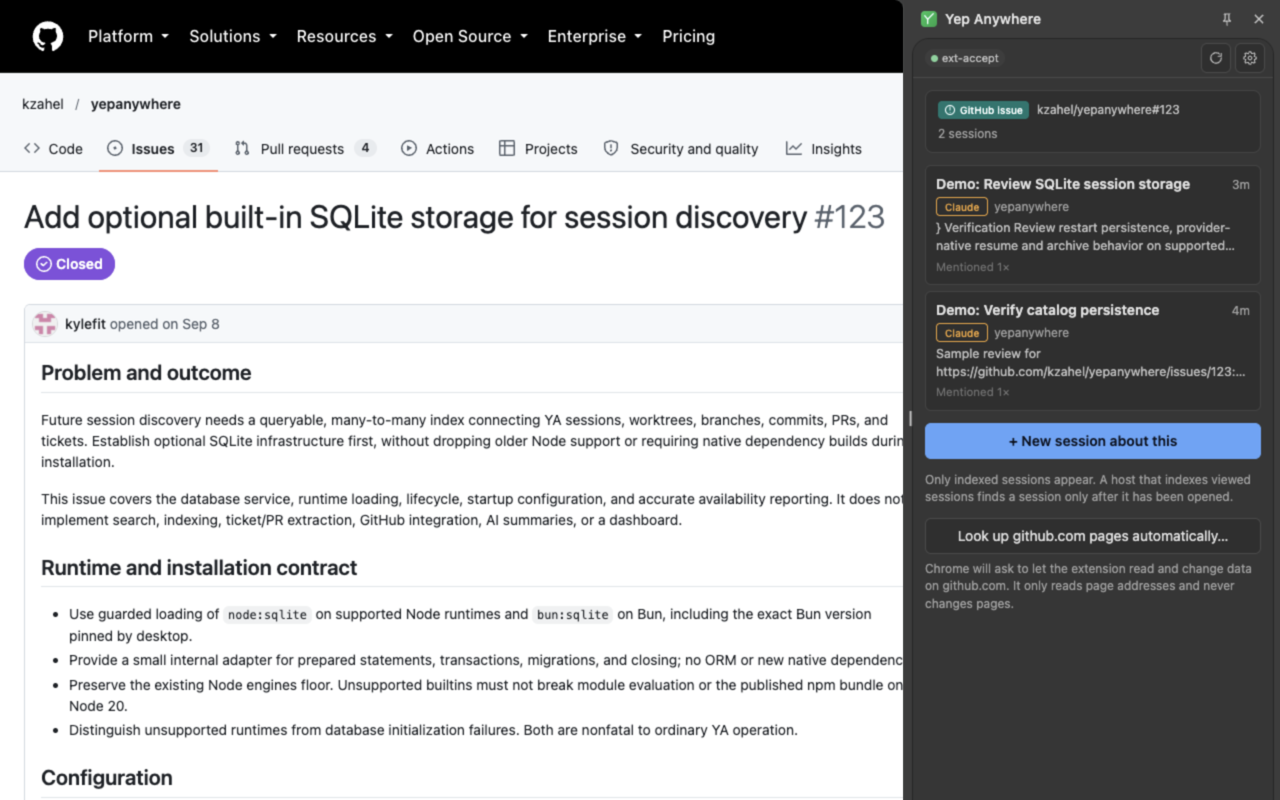
Get started
- Install Yep Anywhere on the machine where your agents run, if you have not already.
- In that server’s Settings → Remote Access, enable the relay and choose your remote username and password.
- Add the extension to Chrome. Pin Yep Anywhere from Chrome’s puzzle-piece Extensions menu so its toolbar icon is easy to reach.
- Click the toolbar icon, open Yep Anywhere from the panel header, and sign in with your server’s Remote Access details. Add other hosts as needed.
- Visit a GitHub issue, pull request, or Jira ticket and click the toolbar icon again to look up related sessions.
Lookups find references already indexed by your server. They are not a similarity search or a scan of your tracker account. A host that has not yet indexed a conversation may find its references only after you open it.
Optional automatic lookup and badges
For sites you choose, the extension can look up the current issue automatically and show a related-session count on its toolbar icon.
In the side panel, expand Allow scanning this page and follow the steps to grant access to that specific site. If Chrome hides the page address, click the Yep Anywhere toolbar icon first. You can also manage site access, automatic lookup, and repository or Jira-project filters in Settings → Browser extension.
Manual toolbar lookup works without a persistent site grant. Automatic lookup and badge counts need that grant and respect your configured filters.
Tabs, windows, and saved logins
The panel’s Open Yep Anywhere button opens the packaged client. Right-click the toolbar icon for Open Yep Anywhere or Open Yep Anywhere in a popup window. In Settings → Browser extension, choose whether the toolbar opens the side panel or app, and whether new app pages open as tabs or popup windows.
Saved logins stay in the extension’s local storage and are not synced through Chrome. Sign in separately from the website client. Authenticated relay traffic is end-to-end encrypted.
Site access lets the extension read the page address for lookup; it does not read page contents or modify the page. Lookup sends the issue or ticket address to your active Yep Anywhere hosts.
Current limits
This is an experimental client. It requires relay access and does not currently support direct LAN or Tailscale host connections, push notifications, streamed downloads, or HTML artifact previews. Use the normal browser client when you need those features.
The extension does not run coding agents inside Chrome or supply an AI subscription. Your server runs the providers with their existing authentication.